Harman Style Guide Rules
Rules apply to all applications and include the requirements for app development and delivery.
Page contents:
App Startup/Shutdown
App Startup
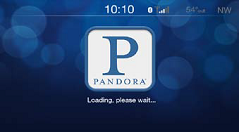
App shall use a splash screen to optimize app initialization and startup.
The splash screen shall be the brand logo of the app such as Pandora, Slacker, Bing, etc.
For apps that are not branded, but are powered by a 3rd
party content provider or are Uconnect branded the app, shall use the brand of the content provider or the Uconnect brand logo.
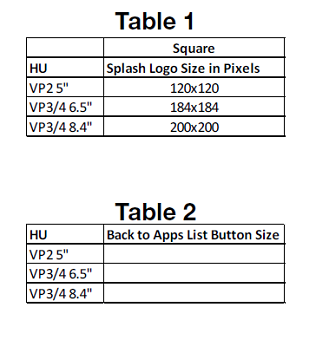
The app shall use the dimensions in Table 1 for the app splash screen.
Splash screen messages shall be displayed for a minimum of 1 second each. The splash screen shall show “Loading, please wait...” while the app is initializing. The splash screen shall show “Logging in, please wait…” while the
app is authenticating the user’s login credentials (optional). While the app is pulling content upon app start up the splash screen shall show “Retrieving data please wait…” (optional).
Media audio shall be heard no later than +/- 1 second of the handset equivalent app, with 3G data and 300 kbps speed, after the user has initiated the launch of the app.
Note: This assumes the user has previously selected
a station to auto play and /or that auto play is configured.
Media app shall complete start up with-in +/- 1 second of the handset equivalent app, with 3G data and 300 kbps speed, (including full HMI) after the user
has initiated the launch of the app.
Non media app shall complete start up in +/- 1 second of the handset equivalent app, with 3G data and 300 kbps speed.
|
|
App Shutdown
All apps shall shut down within 3 seconds. When an app closes it shall release the data and audio (if applicable) connections.
Back to Apps List Button
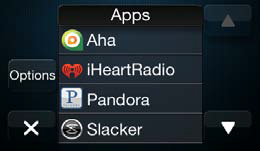
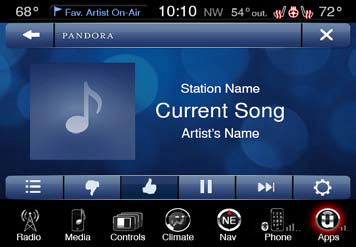
A back to apps list button is required on all apps screens. This button is located in the upper right hand corner under the status bar. This button returns the user to the apps list screen in the system.
The app shall use the dimensions in
Table 2 for the back to apps list button. Note: This button may not be shown in older systems as it would be overwritten by the quit app button.
Top
Security and Personal Settings
Security
All apps with access to personal information/accounts such as, but not limited to twitter and email reader shall have the ability to lock out random vehicle users.
The app shall design a method to preserve and restore the customer’s app settings
when the app is updated.
Note: This includes presets and last played station.
Hyperlinks for subscribed branded apps shall not be made available in-vehicle.
Personal Settings
All apps shall have a setting type button.
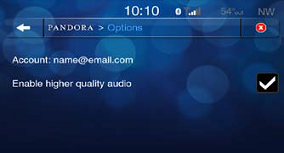
The settings menu in each app shall include user log in name, and app version.
Data Warning
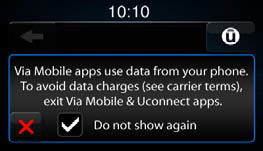
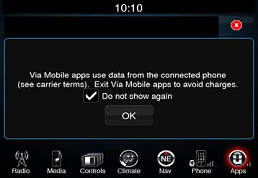
All via mobile apps are shall show a data usage pop up prior to data usage of the connected smartphone.
This data warning popup message shall have a “do not show again” check box.
If the “Do not show again” check box is selected for a
specific app this pop up will be suppressed until a new version of the app is downloaded.
Top
Minimum Text, Icon, and Button Sizes
Font size/Icon size
All text must have a minimum character height of 3mm, measured from the ascender line to the base line. Text labels with an icon should have a minimum character height of 2.5mm and the associated icon should have a minimum height of 8mm. Icons
should have a minimum height of 10mm. Size is first determined in mm so it can be measured objectively without consideration of resolution, rendering, or font differences. Sizes in pt and px are given only as reference. All final text must
be measured in mm to ensure it meets the best practice minimum.
Millimeters and pixels measure the distance between the cap height and the descender line.
In some case, the body height may be more.
Button Size
Any given dimension in an on-screen button’s touch area must be at least 12.7mm.
Buffer Area
Adjacent buttons should have a 3mm gap between their pressable areas, even though the graphics can show them closer than 3mm.
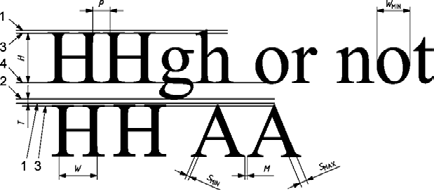
Key
1 ascender line
2 descender line
3 cap line
4 base line
H character height
W character width
SMIN minimum stroke width
SMAX maximum stroke width
P minimum character distance; for adjacent characters
with parallel lines, P > SMIN
WMIN word distance; width of lower case “o”
M minimum perceptible distance, M > 0,5 × SMIN
T text line space, T > 0,5 × (SMIN + SMAX)
Top
App Properties File and Language Requirements
|
App Icon
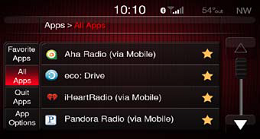
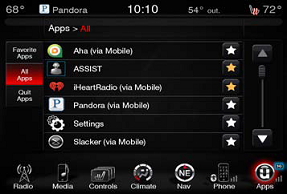
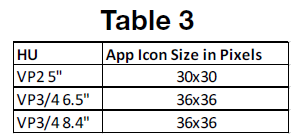
App icons in the list on any app list shall use the dimensions in Table 3.
The app icons shall be centered vertically in the app manager list.
VR Name
One touch operations shall not have a corresponding VR command.
Applications that are launched by VR shall use the term “launch” followed by the VR name. For example “Launch Yelp”.
The VR name shall be updateable over the
air.
Chrysler HMI will need to approve the VR name before it can be implemented.
|
 |
Language
English, Canadian French and Mexican Spanish shall be supported language for all user interfaces.
Top
Music/Media Apps
|
Album Art
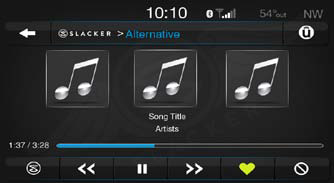
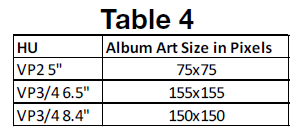
Album Art on the player screen shall use the dimensions in Table 4.
Buffering
While an app is buffering audio the term the content provider uses shall be shown on the screen.
The term buffering (or its synonyms) shall be displayed on the screen such that it is obvious and easily seen by the driver.
The
term buffering shall be on the player screen of the app in a dynamic text area.
Examples of acceptable locations for the buffering message are in place of the track name or artist name.
|
|
Presets
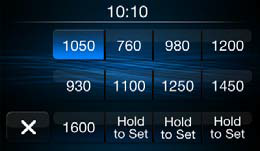
There shall be 1 page of presets.
Presets should set by pressing and holding the preset button for 3 seconds.
Changing Stations
Changing of stations, pausing, banning, likening and any other operations specific to each 3rd party content provider shall be performed within +/- 1 second of the handset equivalent app, with 3G data and 300 kbps speed.
Top
Connection Status
Network Connection Messaging
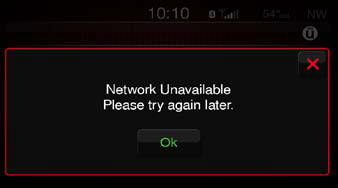
Apps that are currently pulling data constantly (aka media apps) shall display the connection error messaging in a dynamic text area.
This connection message shall be displayed in the same location as the buffering message.
Apps that pull
data or refresh data upon user input shall display a connection error message in a popup.
Loss of Radio Connectivity
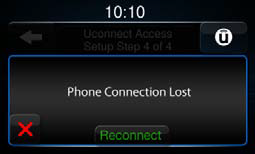
The via mobile app shall display an error message with a reconnect button when the app is in a state such that a connection (PCF/Tun 0/SPP/….) status needs to be relayed to the customer.
The app shall have an automatic reconnect strategy before
prompting the user to reconnect.
The app shall attempt to reconnect automatically in the background.
If the app attempts unsuccessfully to pull new data due to loss of connectivity during the automatic retry interval, that app shall
immediately display the reconnect message.
In the event that the connection has been reestablished and the user has not dismissed the error message, the app shall dismiss the error message.
Apps that pull data due to a specific user
task/interaction (weather, sports and search) will try 3 times to connect before displaying an error message with a reconnect button.
Top
Market Configuration and App Delivery
Market Configuration
All via mobile apps shall have the ability to read the VIN from the vehicle using an API defined by the Head Unit manufacturer.
All via mobile apps will require a connection to a Configuration Server which will be responsible for keeping track
of vehicle and app software revision levels as well as market/region requirements of apps.
Via Mobile apps shall contain a configuration setting to determine if they should be visible in a given market, based upon business requirements.
The HU shall use this setting to determine whether or not an app is able to be viewed by customers.
Via Mobile apps shall read, via an API from the HU, the appropriate market designation. This market designation will be provided to the
configuration server.
App Delivery
All apps are required to be updateable over the air. Apps will be required to be delivered at regular intervals throughout development and production. For production, apps are bundled into delivery packages and provided to the HU supplier for
inclusion into firmware builds. Apps are bundled into packages to reduce HU part number proliferation and reduce the data download size required from end customers’ smartphone. Developers will be provided specific development and production
delivery dates uniquely for each vehicle program and HU.
Top
Popups
Popups
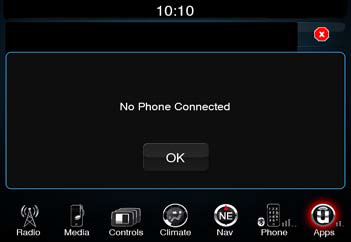
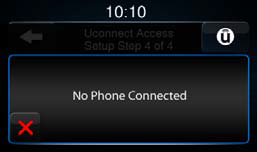
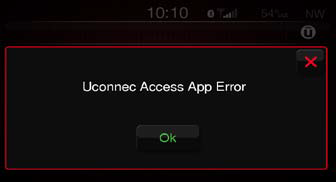
Popups can inform users of errors, notifications, or confirmations of intended action. .You should avoid putting a lot of text in a popup . Messages should be succinct and inform the user of the purpose of the message. Alternate versions of the
popup message may be necessary for speed lockout conditions. A popup is a self-contained view that hovers above the contents of a screen.
All app popups can be found in the App Popup: Errors, Confirmations, Notifications document. If the
app requires a unique app popup that is not covered in the document, Chrysler HMI approval will need to be given before that app popup can be implemented. A complete list of text entries (messages, popups, etc.) must be delivered to Chrysler
HMI prior to the first test cycle.
Top
Driver Distraction
Driver Distraction
All apps in the NAFTA market must adhere to Chrysler’s driver distraction rules and regulations. If the entirety of an app cannot do so, the driver will not be able to use it while driving.
The app must comply with AAM principles 700 and 701.
The
app must pass AAM guidelines 2.1: “Visual distraction - driving performance / reference task method”.
Chrysler/Fiat has the right determine whether an app or an app’s subscreens are to be locked out while driving. Any areas that are designed
to be locked out during driving will be discussed with Chrysler/Fiat for their approval. If Chrysler/Fiat disagrees, a design modification may be necessary.
Any areas that are found necessary to be locked-out during compliance testing,
a process of disclosure to Chrysler/Fiat and possible redesign is required for failed HMI components.
If screens in an app cannot adhere to text and button size requirements, those screens will be locked out while the vehicle is in motion.
Locked Out Content
There are currently four situations when content is locked out on the HU and a speed lockout popup is displayed:
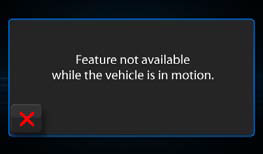
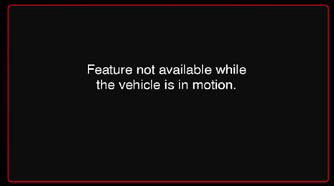
- The entire app is speed locked and needs to be paused to maintain a good customer experience for that feature (user is given popup “Feature not available while the vehicle is in motion” without x button or timeout). Example: Registration
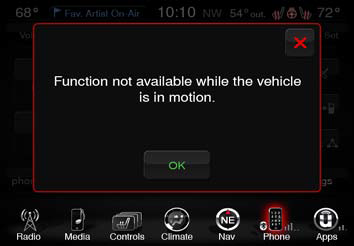
- A function of the app is speed locked and needs to be paused to maintain a good customer experience for that feature (user is given popup “Function not available while the vehicle is in motion” without x button or timeout). Example:
Via Mobile Wizard
- The entire app is speed locked and needs to be closed (user is given popup “Feature not available while the vehicle is in motion” with x button and when pressed redirected back to apps list). Example: Store
- A function of the app is speed locked and needs to be closed (user is given popup “Function not available while the vehicle is in motion” with x button and when pressed redirected back to previous screen). Example: Keyboard entry in
Yelp
If content is locked out, the control to access it is greyed out while in motion. If selected, the greyed out control will trigger the presentation of the speed lockout popup “Feature not available while the vehicle is in motion”. If the locked
content is already up while the vehicle is in motion, its interface is blanked out except for a command to leave the locked out state to return to the available content. If the entire app is speed locked out, the speed lockout popup should
be presented and when the popup times out the app will close and return the user to the last viewed screen of the apps list.
If item is greyed out in a list, cursor would jump over that item to the next viable option. If whole list
is greyed out, cursor would not be shown. If user puts vehicle in motion while on greyed out list item, the cursor does not move from the line item even though it is not selectable in the current state. The cursor can move past that line
item and it would then jump over greyed out items.
Top